
Top 7 Blueprint Software 2025

Designing with clarity takes more than a good idea and a pencil. Technology now offers a variety of tools that make planning easier and faster, but each new option brings something different to the table. Some promise total control over every detail while others focus on quick sketches and easy sharing. One might be perfect for solo creators and another might fit teams that grow with every project. With so many choices, deciding which software fits your plans can spark new possibilities and even reshape the creative process in ways you never expected.
Table of Contents
SketchUp
At a Glance
SketchUp provides an intuitive 3D modeling ecosystem built for designers and builders who need fast, visual results. It balances accessible tools with a professional feature set so you can create buildable models without steep upfront complexity.
Takeaway: Good choice when you want accuracy with a gentle learning curve.
Core Features
SketchUp centers on easy 3D creation paired with a strong ecosystem of libraries and integrations. Users get intuitive 3D modeling tools and access to massive content and customization sources.
- 3D Warehouse: Millions of prebuilt models ready for use.
- Extension Warehouse: Add automation and custom tools through extensions.
- Trimble Connect: Cloud collaboration and Trimble Marketplace support.
- LayOut and Scan Essentials: 2D documentation and real world data import for as-built accuracy.
Takeaway: Mix of modeling, documentation, and cloud collaboration covers both concept and delivery stages.
Pros
-
Easy to learn for beginners: The interface reduces onboarding time so new users can produce models quickly.
-
Wide industry support: Architects, builders, and landscape designers can all apply the same toolset to different project types.
-
Extensive model library: 3D Warehouse speeds up detailing by giving you ready assets instead of building from scratch.
-
Strong ecosystem: Extensions, Trimble integrations, and real world data tools let you expand functionality as projects demand.
-
Professional credibility: Trusted by professionals which helps when sharing models with consultants and permitting officials.
Takeaway: SketchUp scales from hobby work to professional projects through its ecosystem.
Cons
-
Some advanced tools require a paid Pro subscription which means full functionality is behind a paywall.
-
The free web version has clear limitations for professional workflows and may not support complex documentation needs.
-
Advanced features can be complex and require extra learning or training to use effectively on large projects.
Takeaway: Plan for training and a budget if you expect professional deliverables.
Who It’s For
SketchUp fits designers, architects, builders, and educators who want accessible yet capable 3D modeling. For Florida homeowners and contractors, it is useful for visualizing residential remodels, roof geometry, and site layouts before permitting.
Takeaway: Ideal when you need a shared visual model for client meetings and permit submittals.
Unique Value Proposition
SketchUp stands out because of its combination of easy 3D tools and a vast content and extension ecosystem backed by Trimble. That mix lets small teams deliver buildable models while adding advanced workflows when needed.
Takeaway: Start simple and expand capability as project requirements grow.
Real World Use Case
A landscape architect geo locates a park design to check vegetation and terrain integration, then shares the model with stakeholders for review and comment. That workflow shortens feedback loops and improves approval clarity.
Takeaway: Practical for site specific design reviews and stakeholder collaboration.
Pricing
SketchUp offers a free web based tier called SketchUp Free. Paid plans begin at $119 per year for SketchUp Shop and $299 per year for SketchUp Pro, with higher pricing for Studio and educational options.
Takeaway: Budget friendly entry and predictable annual licensing for pro features.
Website: https://sketchup.com
Chief Architect
At a Glance
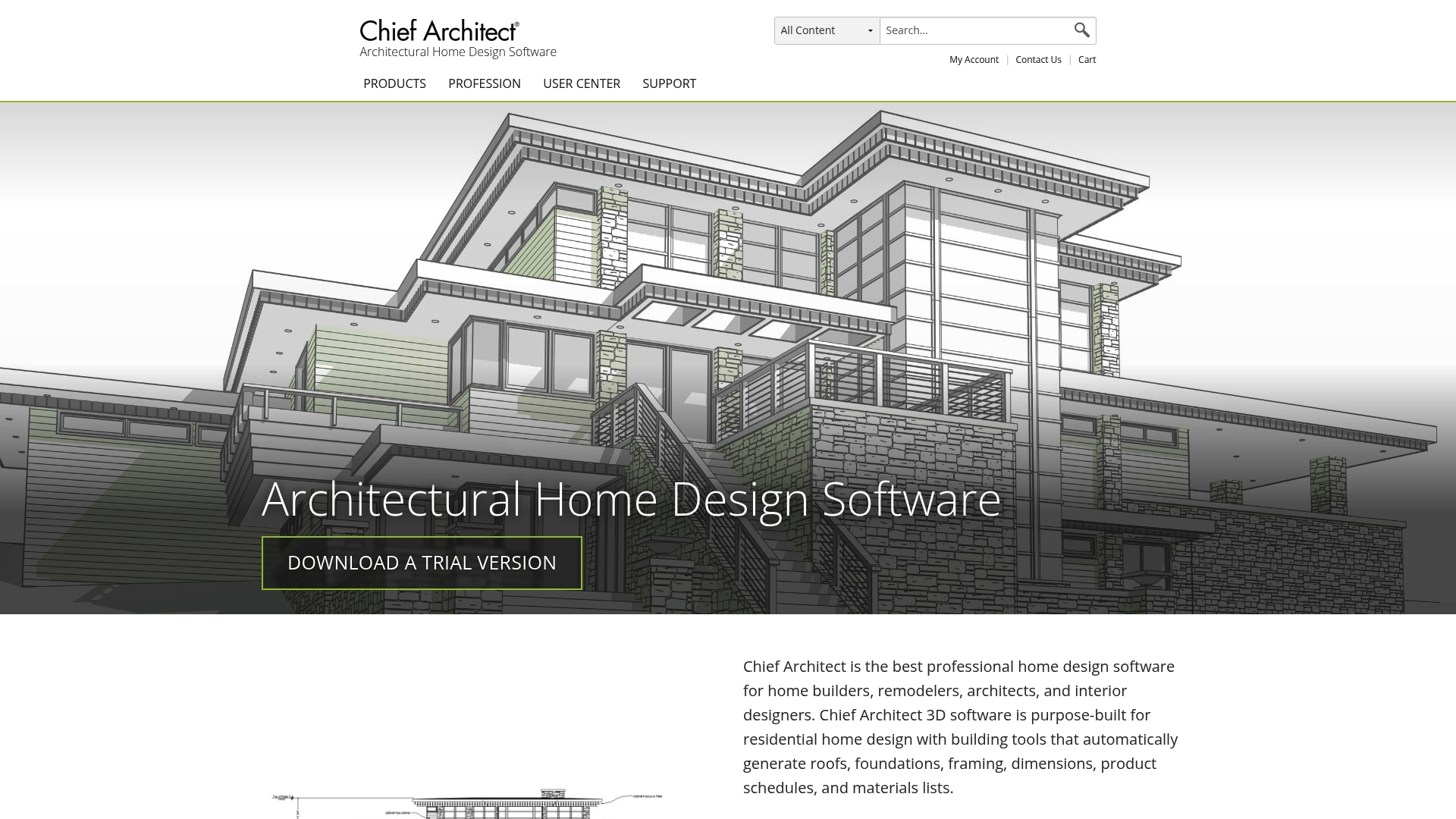
Chief Architect is professional home design software focused on residential projects, offering powerful automation and high quality 3D rendering for builders, remodelers, and designers. The bottom line: it speeds drafting and client visualization while requiring time to master for solo users.
Core Features
The software emphasizes automated generation of roofs, foundations, and framing along with tools for dimensions, product schedules, and materials lists. It also delivers strong 3D visualization and rendering plus automatic creation of walls, ceilings, floors, and openings for windows and doors.
Pros
-
Specialized for residential design: The toolset aligns tightly with home building workflows, reducing manual drafting on common house elements.
-
Automatic creation of construction lists: It produces materials lists and product schedules without extra assembly work, saving estimating time.
-
High quality 3D output: Renderings help present designs to homeowners and local permitting offices with clear visual fidelity.
-
Customizable Style Palette: The Style Palette simplifies room finishes and architectural elements so designers can iterate fast for client review.
-
Stakeholder sharing via 3D Viewer: Models can be shared with clients and subcontractors to clarify scope and reduce miscommunication.
Cons
-
Pricing may be high for individual users, which limits accessibility for small independent contractors and hobbyist remodelers.
-
The feature set targets professionals, so beginners face a learning curve before producing accurate construction documents.
-
The data shows limited mention of compatibility with other CAD software, which can complicate collaboration on mixed tool projects.
Who It’s For
Chief Architect fits professional home designers, architects, remodelers, interior designers, and building contractors who need detailed residential plans and presentation models. If you produce schematics, elevations, and construction drawings regularly, this software is a practical match.
Unique Value Proposition
The core advantage is a residential focus that automates repetitive architectural tasks and links modeling to construction documentation. That combination of automation plus high fidelity visualization reduces turnaround on client presentations and speeds delivery of buildable plans.
Real World Use Case
An architect produces a new home package by modeling the structure, letting the software auto generate roof framing and foundations, and exporting materials lists for the contractor. The designer then uses rendered views to secure client sign off and finalize permit drawings.
Pricing
Billed Annually: $1,995 per year (equivalent to $166.25 per month with a 27% savings). Billed Monthly: $229 per month. Free on demand introductory training is included to help teams ramp up.
Website: https://chiefarchitect.com
Bluebeam Revu

At a Glance
Bluebeam Revu is a PDF solution built for design and construction teams, combining powerful PDF markup and editing with field ready collaboration tools. It speeds document communication across office and field crews while demanding user training for complex workflows.
Core Features
Bluebeam Revu brings real-time collaboration, document management workflows, and customizable templates together to keep plans and markups consistent across teams and project phases.
- PDF markup and editing
- Real-time collaboration
- Document management workflows
- Integration with industry tools
- Customizable workflows and templates
Pros
-
Industry standard adoption helps when exchanging plans with consultants, permitting offices, and other contractors because many partners already read and annotate the same file format.
-
Collaboration across teams lets office and field staff work on the same set of documents in real time, reducing miscommunication and repeated site visits.
-
Rich markup and measurement tools provide detailed annotations and takeoff capability that support design review and quantity estimation tasks.
-
Strong integration options connect Revu to other construction and design tools, allowing existing workflows to remain intact while adding PDF control.
-
Dedicated training and support resources help teams climb the learning curve and adopt advanced features faster.
Cons
-
Pricing may present a barrier for some users because licensing options require direct inquiry and can be less straightforward for small firms.
-
The complexity of features requires formal training to use optimally, which adds onboarding time for teams new to the platform.
-
Some users report performance issues with very large files, which can slow review sessions when plans include many sheets or heavy raster content.
Who It’s For
Bluebeam Revu fits professionals in Architecture, Engineering, and Construction who manage project documentation, run design reviews, and coordinate build teams. It suits firms that need robust PDF editing and collaboration across office and field personnel.
Unique Value Proposition
Bluebeam Revu consolidates powerful PDF editing with collaboration and workflow customization tailored to construction projects. The platform stands out for document control and an ecosystem of training and integrations that match industry processes.
Real World Use Case
A construction company uses Bluebeam Revu to review and annotate construction plans in real time with field teams, which improves communication and reduces errors during building. The shared markups shorten review cycles and clarify on site issues quickly.
Pricing
Pricing is available upon request via Bluebeam’s website, with different plans and licensing options that vary by organization size and deployment needs.
Website: https://bluebeam.com
Vectorworks 3D Design Software
At a Glance
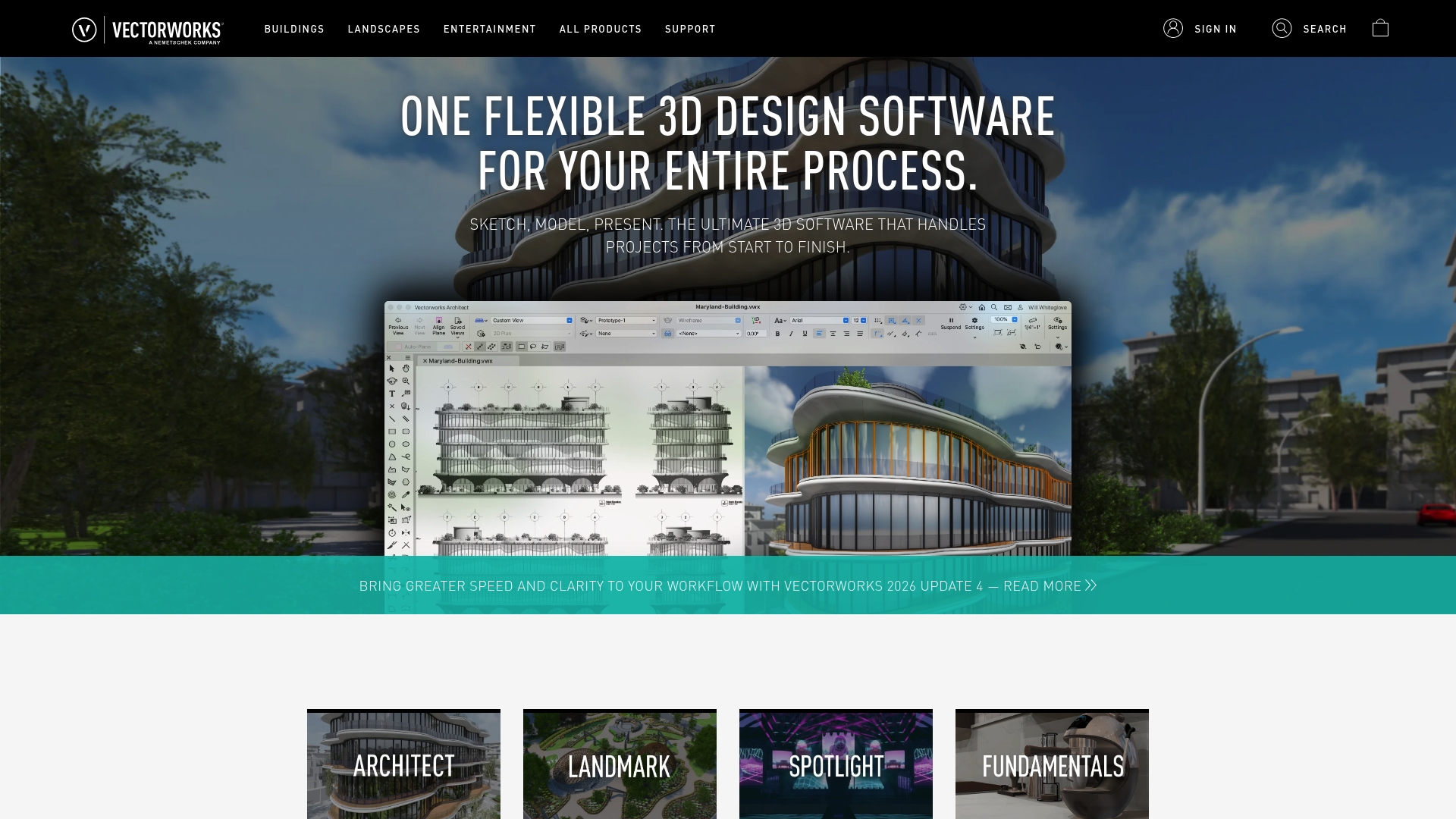
Vectorworks delivers a full all-in-one 3D design environment that carries projects from sketch to presentation. It is powerful for firms that need integrated modeling and visualization but expects a learning investment and strong hardware to run smoothly.
Core Features
Vectorworks combines Integrated BIM capabilities, specialized modules for architecture and landscape, and real-time rendering tools within one platform. Training options including Vectorworks University and ongoing updates round out a comprehensive toolset for design teams.
Pros
-
Versatile across disciplines. The software supports architecture, landscape, entertainment, and general 3D CAD workflows in a single package which reduces the need for multiple point tools.
-
Comprehensive toolset. Vectorworks provides modeling, documentation, and presentation features that cover every phase of a project from concept to deliverable.
-
Collaboration friendly. The platform supports project sharing and collaboration that helps multi‑discipline teams coordinate work and handoffs.
-
Frequent updates. Regular releases add features and improvements which keep the tool current with evolving design needs.
-
Strong training resources. Vectorworks University and support materials shorten the ramp up for teams adopting the software.
Cons
-
High system demands. The software can be resource intensive which requires powerful workstations to get acceptable performance on large models.
-
Steep learning curve. New users and small studios will need time and training to use advanced BIM and modeling features efficiently.
-
Costly for small teams. Pricing is not clearly published which suggests contacting sales and may make it less approachable for individual practitioners or very small studios.
Who It’s For
Vectorworks is best for design professionals and firms that need an integrated 3D design and BIM solution. Architects, landscape designers, entertainment set designers, and experienced CAD users who handle complex projects will gain the most value.
Unique Value Proposition
Vectorworks stands out by combining robust BIM with specialized industry modules inside a single application. That unified approach reduces data transfer steps and keeps modeling, documentation, and visualization tightly connected for project teams.
Real World Use Case
A landscape architecture firm uses Vectorworks Landmark to design and model a large municipal park. The team generates planting plans, 3D visualizations, and site reports from the same project file which reduces repetitive work and improves client presentations.
Pricing
Pricing is not specified on the website. Interested users are encouraged to contact sales for detailed pricing information and licensing options that fit firm size and project needs.
Website: https://vectorworks.net
3D and Design Software Comparison
Here is a comprehensive comparison of popular 3D design software to help you make an informed decision for your professional or personal projects.
| Software | Core Features | Pros | Cons | Pricing |
|---|---|---|---|---|
| SketchUp | Intuitive 3D modeling, extensive library | Easy learning curve, extensive model library | Requires Pro subscription for advanced features | Free (web) to $299/year (Pro) |
| Chief Architect | Automated residential design, high-quality rendering | Specialized for residential projects, strong 3D visuals | Limited CAD compatibility, steep pricing | $229/month or $1995/year |
| Bluebeam Revu | Real-time PDF collaboration, document workflows | Industry-standard, advanced markup tools | High pricing, complex for beginners | Available upon request |
| Vectorworks | Integrated BIM, real-time rendering | Versatile across disciplines, frequent updates | High system demands, costly for small teams | Requires a sales inquiry |
Elevate Your Designs with Trusted Engineering Expertise
Choosing the right blueprint software like SketchUp or Chief Architect is crucial to visualize and document your projects accurately. But turning those digital models into approved plans can be challenging without the right engineering support. Many users face hurdles such as complex documentation needs, permit requirements, and detailed site planning that software alone cannot solve.
At Florida Licensed Engineers, we specialize in bridging this gap by providing comprehensive engineering services for residential and commercial projects. From architectural and structural plans to civil engineering services like drainage and flood mitigation, our expert team ensures your blueprints meet all regulatory standards and streamline permit approvals.

Don’t let software limitations hold your project back. Partner with us to transform your digital designs into buildable, compliant plans with ease. Visit https://floridalicensedengineers.com today and take the next step toward hassle-free permitting and professional engineering support.
Frequently Asked Questions
What should I look for in blueprint software for 2025?
When choosing blueprint software, consider features like ease of use, collaboration tools, and the ability to integrate with other design programs. Evaluate how quickly the software allows you to create accurate designs and whether it supports documentation and project management.
How can blueprint software improve my design workflow?
Blueprint software enhances your design workflow by streamlining the creation and editing process, allowing for faster revisions. Utilize these tools to automatically generate documentation and share updates with team members, aiming to reduce project turnaround time by about 30%.
Are there specific features that benefit construction projects in blueprint software?
Yes, look for features like built-in measurement tools, 3D visualization capabilities, and material quantity estimating. These tools help you create precise plans, which can improve accuracy and decrease material waste by approximately 15%.
How can I ensure my team effectively adopts new blueprint software?
To ensure effective adoption, provide comprehensive training and encourage team feedback during the implementation phase. Schedule training sessions and follow up to address challenges, striving for full team proficiency within 60 days after rollout.
What are the key differences between free and paid blueprint software options?
Free blueprint software often has limited functionality and fewer collaborative features compared to paid versions. Assess your project needs to determine if investing in a premium tool will significantly improve your workflow and project outcomes.
How do I decide if I need a cloud-based or desktop blueprint solution?
Choosing between cloud-based and desktop solutions depends on your team’s collaboration needs and project size. If real-time collaboration is a priority, consider cloud-based software; if offline access is critical, desktop solutions may be more suitable.


